TaskSculpta - A Windows task action automation tool with a difference.
What is TaskSculpta?
TaskSculpta is a free, portable Windows automation tool that allows you to create, edit, and run tasks without writing scripts or batch files. It provides a visual alternative to traditional automation methods such as batch files and a much quicker way than writing programs.
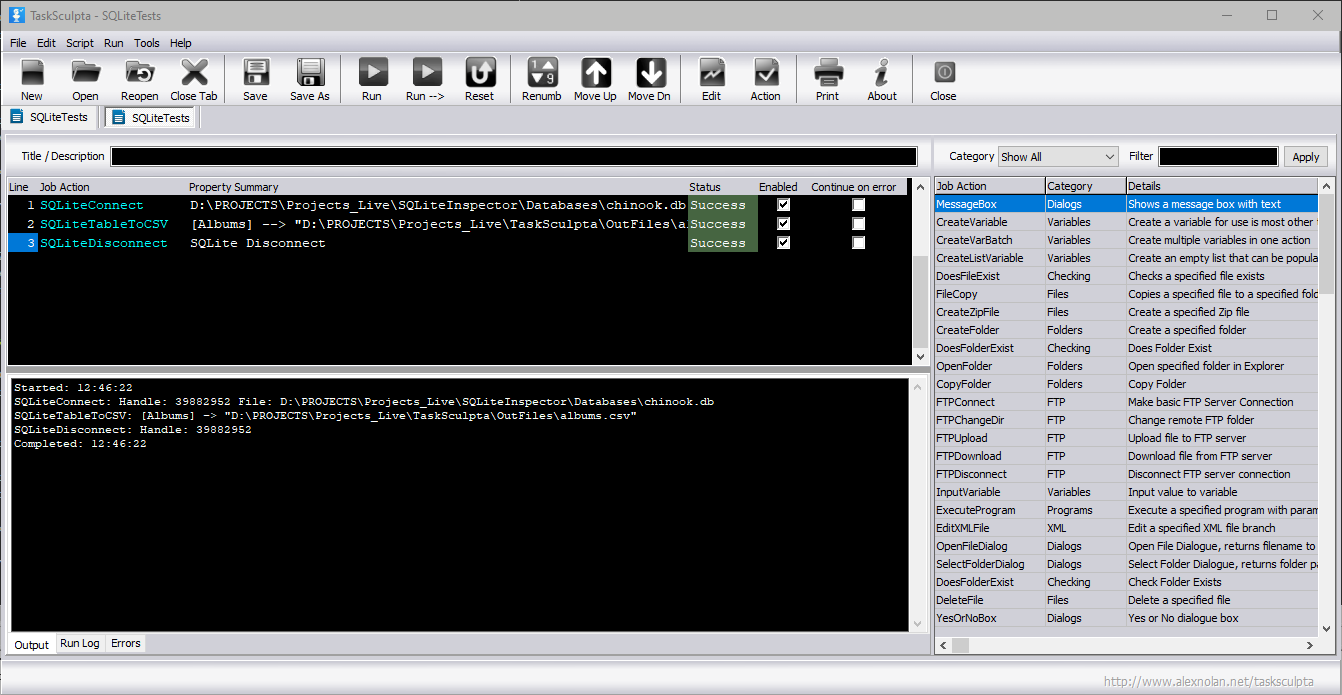
Above is a screenshot of TaskSculpta.
Download TaskSculpta here
If download does not start, right click and select Save link as...
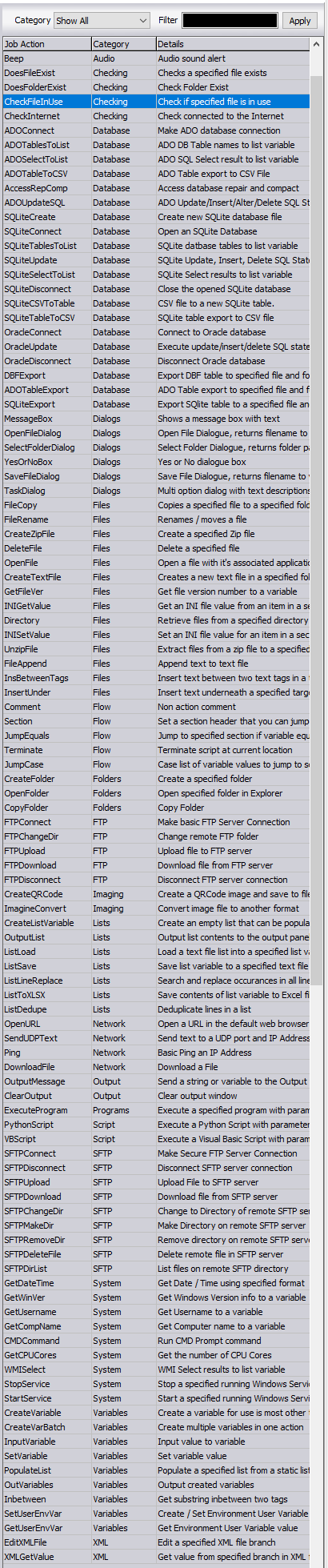
Actions List
Introduction
TaskSculpta is a general purpose automation tool I created some time ago to automate the release of my utilities. I also use it for various other development tasks. I've put a similar user interface from my other recent new tool TaskFlexa.
Think of it as kind of a visual form of batch files that you can see the flow of the task actions. You don't need to learn and code just familiarize yourself with the Task Actions list.
This tool is perfect for technical and semi technical Windows users who want to automate processes, integration or just make regular tasks simpler. You do not need programming knowledge to use TaskSculpta but if you are a software, database or web developer you can use it in conjunction with Python or VBScripts. You can also use it to launch you're own console application and monitor the success of fail status of that application.
You can associate a related file or a URL to each task if you wish. The file or URL can then be opened from the selected task.
Multiple task scripts can be opened on separate tabs. The TaskSculpta files have a .TSA file extension.
To use TaskSculpta just create a local folder and put the TaskSculpta files (from the zip file) into it. TaskSculpta is portable like my other tools so it does not require an installation and can therefore be put onto a memory stick to be use between machines.
What TaskSculpta can be used for...
- Creating software release scripts.
- Running console applications with parameters and capturing the output.
- Reading and editing text based files.
- Copying and managing files.
- Executing Python scripts, receiving return value and capturing the output.
- Executing VBScripts, receiving return value and capturing output.
- Making FTP/SFTP connections and file transfers etc.
- Connection to databases using ADO and performing database operations.
- Connecting directly to SQLite Databases and performing database operations
- Executing CMD prompt commands and capturing the output.
- User prompts and information capture.
- Performing checks and getting system information.
- Systems integration and database migration.
- Performing WMI queries and returning system info and status.
- Downloading files from the Internet.
- Connecting to Access databases and performing data operations.
- Executing Powershell Scripts.
- Converting Image files to different formats
What are you using TaskSculpta for?
If you are using TaskSculpta to perform a specific automated task, I would love to know what that is. Please drop me a quick email with a sentence saying what you are using it for.
If you try using TaskSculpta to perform a specific custom task but find it trick or it's lacking a certain task action then email
me also and I'll see if I can create a task action that will enable you to create you intended script.
TaskSculpta - Job Actions List
Here is a reference list of TaskSculpta's Job Actions for putting together automation scripts
TaskSculpta script action reference
Understanding Scripts
The scripts are basically a list of actions with properties. They run from top to bottom naturally. From line 1 to whatever is your last line number. So you have to ensure they are in the correct order. When you add a new task action it will be added to the bottom of the list. So you need to add the items that need to be done before other items first.
For example you need to add FTPConnect before you add FTPUpload or ADOConnect before ADOUpdateSQL etc. You also need to add CreateVariable or CreateListVariable for you add any action that will use them in their properties.
If you do forget something that needs to run before your current actions you can always add it and then move it up. To move an item up - right click on it in the script list and select 'Move Up' this will move it one item up. Repeat until it's in the right place.
If the numbers become out of sync or duplicated select 'Renumber' from the main tool bar or from the same right click menu.
Understanding Variables and Lists
It's important to understand variables because they are the way information, settings and values are passed between different actions. Any software engineer, web developer or scientist should have not difficulty with the concept.
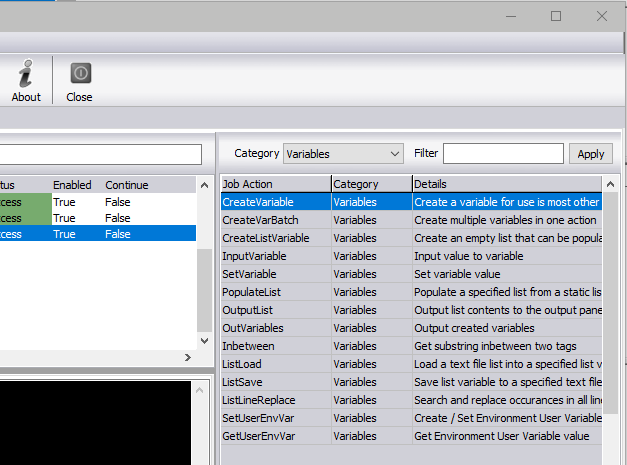
There are different types of variables used in TaskSculpta.
Standard Variables
Variables created using CreateVariable or CreateVarBatch are basic variant variables. They can be text or numbers.
To get information out of the variable it must be enclosed with the % symbols. IE %myvar%
For example in the MessageBox property you can specify text with a variable like this 'This is the inputted value: %myvar%'
Tip.
If you are using lots of variables it's a good idea to use CreateVarBatch. This action allows you to create multiple variables in one line. So it should be the first item in your script.
For more informations on variables see Understanding Variables and Lists.
List Variables
ListVariables are the same but it's a list of them as one variable. They are used specifically for actions that use lists.
Built in variable constants
TaskSculpta has it's own build in variables that a preset at run time, such as...
$Date$$Time$$DateTime$$MachineName$$ScriptPath$$ScriptFolder$$DayOfWeek$$DayOfWeekNo$$DayOfWeek$$Month$$Year$$Username$$TempPath$$CPUCores$
These can be used in actions such as MessageBox IE 'The date is: $date$' or outputted to the Output tab for debugging.
More built in variables will be added in future releases
Note: Variables are not case sensitive so $DATE$ is the same as $date$
Important: Variables are created and destroyed during the running of the script. Values do not remain in the script for the next time they run. If you want to store a variable value you can save it to a file such as INI, XML or Text.
Windows User Variables
If you do want to store a value for next time or pass / share a variable value between multiple scripts you can use Window's User variables.
You can setup these variables in Windows via the following screen.
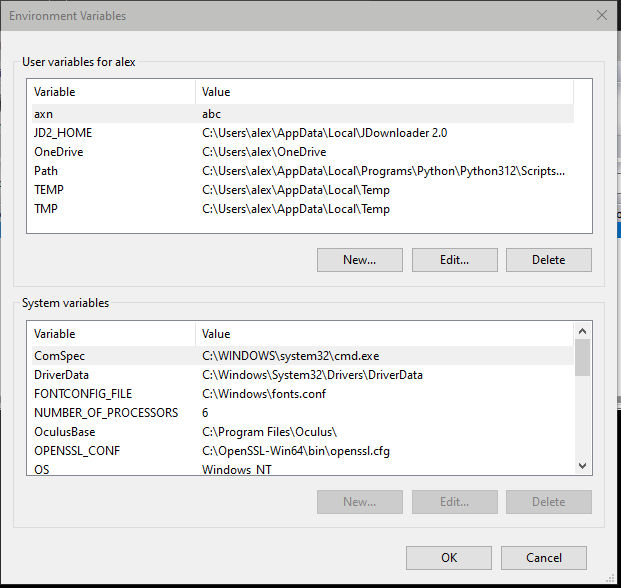
This screen can now also be reached via TaskSculpta's Tools menu.
The Window's User variables can get set and retrieved vai the following actions...
GetUserEnvVar and SetUserEnvVar
Because these variable values are store in Windows they can be passed to different scripts or used to persist values between script runs.
TaskSculpta does not currently support the Windows System Variables but this might change in future releases
If you have a particular variable requirement, let me know.
Running Python Script
You can run a Python script in TaskSculpta as part of you're own projects or as part of a TaskSculpta script. If for example you want to make a specific alteration to file or data, you can do it in Python and even pass a parameter to the Python script and return a value back to the TaskSculpta script variable.
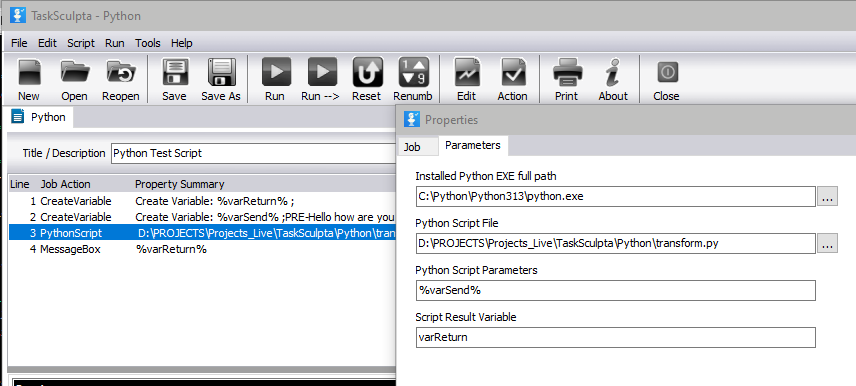
In the dialog above you must first specify the location of your installed Python executable file.
Next specify the location of your script, the variable you will pass as a parameter and the variable that will receive the returned value.
Here is an example of a simple Python script that receives a parameter and returns a value...
		# transform.py
		import sys

		def transform(s: str) -> str:
			# Replace every occurrence of PRE- with #
			return s.replace("PRE-", "#")

		if __name__ == "__main__":
			if len(sys.argv) < 2:
				print("", end="")
			else:
				input_str = sys.argv[1]
				result = transform(input_str)
				print(result, end="")
Here is an example of a simple VBScript that receives a parameter and returns a value...
		' transform.vbs
		Option Explicit

		Dim inputStr, outputStr

		If WScript.Arguments.Count < 1 Then
			WScript.Echo ""
			WScript.Quit 0
		End If

		inputStr = WScript.Arguments(0)

		' Replace "PRE-" with "#"
		outputStr = Replace(inputStr, "PRE-", "#")

		' Output result
		WScript.Echo outputStr
Running Programs
The task action ExecuteProgram is for executing programs and batch files. You can choice the program by clicking the '...' button. The program can be Windows programs or console applications. If they are console applications the output is shown
on TaskSculpta's output tab. You specify the properties of ExecuteProgram as shown in the properties dialog below. The properties can be from variables as seen here.
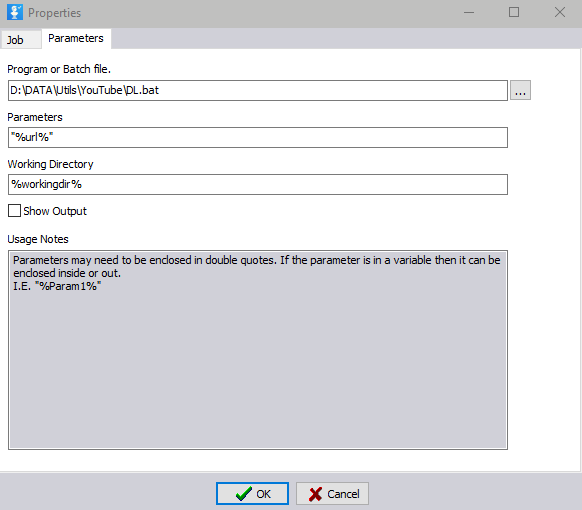
TaskSculpta will report Success or Failed in the status column depending on the exit code of the program. For programmers (software developers) this is useful for creating a program to perform a very specific custom check or task. For example in the past I have create console applications to check valid SQL files as part of a release. The programs exited 1 or 0 depending on whether the checks had been satisfied.
If you execute a Windows program when the script runs you will have to close the program before TaskSculpta will move on to the next task action.
Using SQLite Databases
TaskSculpta allows the user to access SQLite databases directly in the scripts. SQLite is a powerful database and new features for SQLite will continue to be added.
Using SQlite databases is very simple. First you must add the SQLiteConnect to the script and set is properties to your existing SQLite database .db file.
Next you can add SQliteTablesToList, SQLiteUpdate, SQLiteSelectToList, SQLiteCSVToTable, SQLiteTableToCSV in the combination you need. When finished add SQLiteDisconnect to close the database and free temp files created by the database engine.
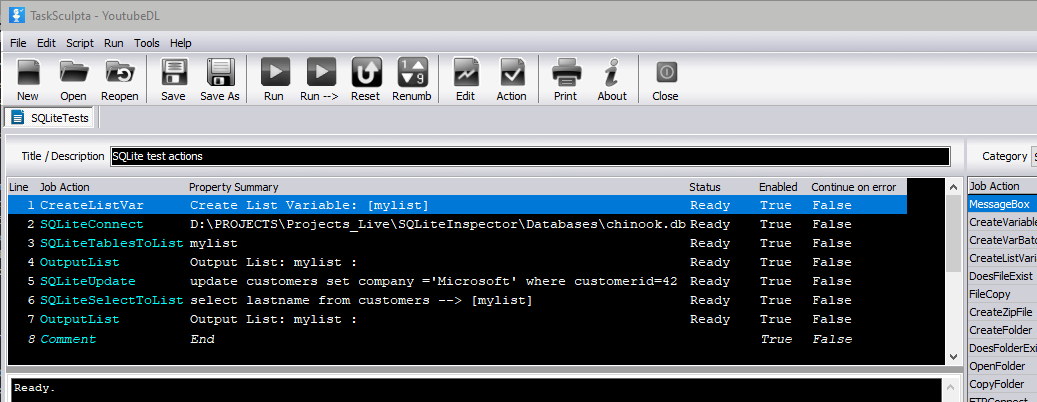
There is now a action to create a new SQLite database SQLiteCreate. To visually view and edit SQLite database see my
SQLite Inspector Plus tool.
Windows Management Instrumentation (WMI)
Windows Management Instrumentation (WMI) is Microsoft's powerful feature for management data and operations on Windows OS.
It allows you to query, configure, and automate system settings, hardware, and applications locally and remotely.
WMISelect executes these WMI Select statements and returns the results to your specified List Variable. This list can then be processed, saved etc
Here's just a few examples of WMI Select statements...
		SELECT Caption, Version, BuildNumber
		   FROM Win32_OperatingSystem
		SELECT Name, ProcessId, ExecutablePath
		   FROM Win32_Process
		SELECT Name, Manufacturer, Status
		   FROM Win32_Printer
		SELECT DeviceID, VolumeName, FileSystem, FreeSpace, Size
		   FROM Win32_LogicalDisk
Keep an eye on this section as more WMI features will be added.
FTP and SFTP (File Transfer Protocol)
TaskSculpta now supports both FTP and SFTP. SFTP is the Secure version of FTP used commonly by web developers to transfer files and updates to their websites securely. If you do know no which to use I would go with the SFTP and basic FTP is only really used for internal applications and VMs.
Which ever you use you must stick with those actions (SFTP or FTP). You can't mix and match. You must first use either FTPConnect or SFTPConnect to establish the connection and when your finished use FTPDisconnect or SFTPDisconnect. Which ever you use you must stick with those actions (SFTP or FTP). You can't mix and match. The actions are categorized separately in the drop down box to make this easier to see.
Currently the SFTP actions are SFTPConnect, SFTPDisconnect, SFTPUpload, SFTPDownload, SFTPChangeDir, SFTPMakeDir, SFTPRemoveDir
Dynamically create data input forms
In TaskSculpta you can now create you own data input forms for capturing values from the user which can be passed via variables to other actions which can then write the inputted values to files or insert/update then to databases via SQL statements.

How to create forms
To create a form you need to use these three task actions: FormSetup to create the form, FormField to add a field and FormDisplay to show the form at the point in your script.
FormSetup has to be first. You specify the forms title and alter the left and right margin defaults if requires.
FormField adds a field to the new form. You give it a title, select which margin you want to align it with and specify the variable for the inputted value. You can alter the width default if needed. You can optionally give it a default value if you want. Example properties below:-

You need to add a FormField for each field you want on your form.
FormDisplay shows the form and when the user clicks apply it assigns the inputted values to their assigned variables.
Feedback
This is a new tool release 6th Dec 2025. If you do get an unexpected error message then contact me and I'll try and fix it as soon as possible. I also have lots of new features planned for this tool so if you would like to see a particular feature let me know so that I can prioritize it, if it's already on my list. Also I would like to hear what purposes users are using TaskSculpta for and then maybe I can enhance it in that area.
As TaskSculpta is a new tool I would appreciate feedback. Let me know if you get any unexpected errors or a feature doesn't work correctly. I've got lots of new task actions in progress for TaskSculpta so it would be good to here what kind of things would be useful. Just send an email. Contact